Introduction
CRM automation means letting your CRM do the repetitive follow-up so your reps can spend their time selling. Most sales teams don’t lose deals because reps are lazy. They lose them in quiet gaps: a new lead nobody called, a hot prospect nobody noticed, a deal that sat in Negotiation for three weeks without a nudge.
This guide shows seven workflows you can build in Zoho CRM to close those gaps, each written as a simple trigger, condition, action and outcome. It also covers the limits that catch teams out and where Zia’s AI suggestions fit.
What CRM Automation Means in Zoho CRM
In Zoho CRM, CRM automation is built mostly from workflow rules. According to Zoho’s guide to configuring workflow rules, every rule has four parts: basic details, a trigger, conditions and actions.
- Trigger: what starts the rule. Zoho supports record actions (create, edit, delete), date field values, score changes, Zia recommendations, notes and competitor mentions.
- Condition: the filter that decides which records qualify, such as “amount above a set value”.
- Instant actions: what happens immediately, such as an email, task, field update, webhook, custom function or a Slack or Cliq notification.
- Scheduled actions: what happens later, up to five per rule.
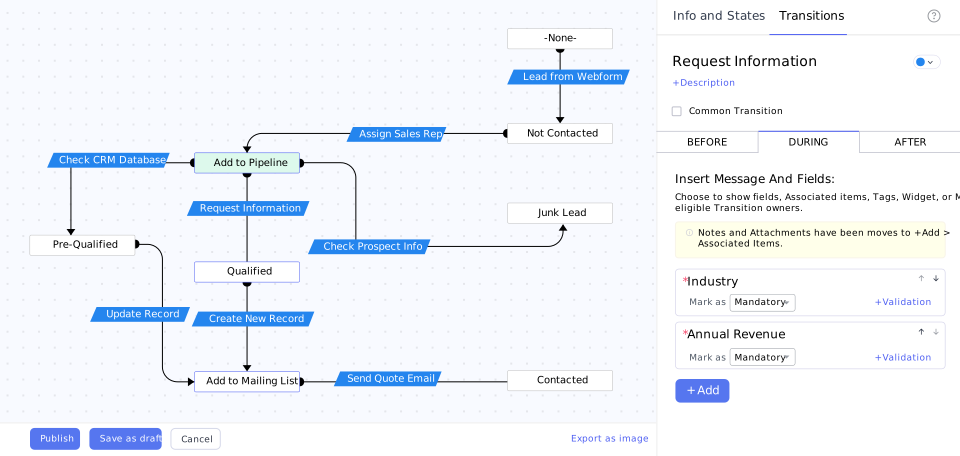
Zoho’s introduction to automating workflows describes the same idea: define what should happen when a record changes, and let the system do it every time. Background rules like these work alongside guided processes, which we cover in our Zoho CRM Blueprints guide.
Why Sales Teams Need CRM Automation
The case for automating sales work is practical rather than theoretical. McKinsey’s analysis of sales automation estimates that about a third of sales and sales-operations tasks can be automated, yet only about one in four companies has automated even one sales process. Treat those as directional estimates, not guarantees for your team.
The reading for a sales manager is simple. Much of what reps do by memory, such as reminders, status updates and hand-offs, is rule-shaped work. If a human has to remember it, it will eventually be forgotten, usually on the busiest day.
What to Automate First: A Three-Question Test
Before building anything, run each candidate through three questions:
- Does it happen the same way every time? Rules suit predictable steps, not judgement calls.
- Does a delay cost money? Speed-to-lead and stalled deals pass; formatting a report probably doesn’t.
- Can you name the owner? Every automation needs a person who checks that it still does what it should.
If the answer to all three is yes, build it. The seven workflows below all pass.
7 CRM Automation Workflows to Build in Zoho CRM
Each recipe follows the same pattern, so you can copy it into a rule today.
Workflow 1: Speed-to-Lead Task on Every New Lead
- Trigger: a lead is created.
- Condition: lead source is a web form, ad or WhatsApp inquiry.
- Action: create a “Call within 15 minutes” task for the lead owner.
- Outcome: no lead waits for someone to notice it.
Zoho’s execution order runs assignment rules before workflow rules, so the lead already has its owner when the task is created. That is why the task lands with the right rep. Pair this with automatic routing; our guide to automated lead distribution covers the assignment side.
Workflow 2: Hot-Lead Alert When the Score Rises
- Trigger: a lead’s score is increased.
- Condition: the score reaches your threshold, for example 10 or more.
- Action: create a follow-up task and notify the owner.
- Outcome: reps hear about engaged leads while the interest is fresh.
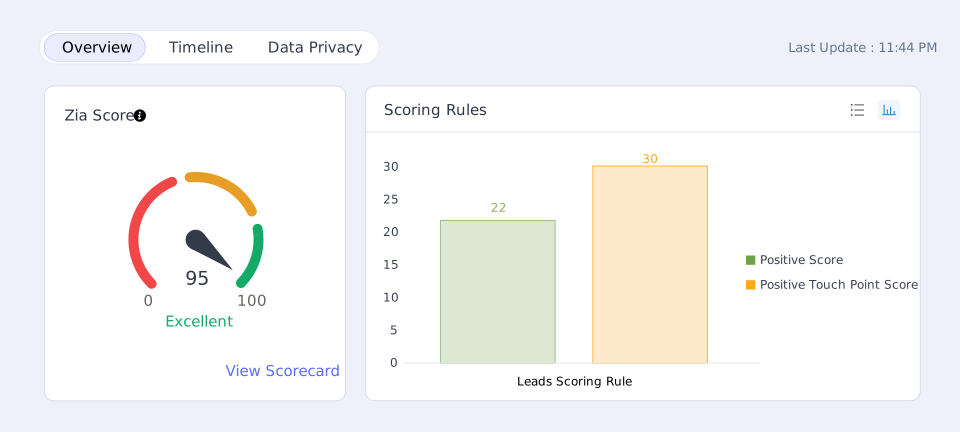
Score-based triggers are available in all paid editions, and Zoho’s own example uses exactly this pattern. It turns a quiet number into an action. Our marketing automation guide explains how scoring ties back to campaign behaviour.
Workflow 3: Big Deal Alert
- Trigger: a deal is edited, on the amount or probability field.
- Condition: amount is above your large-deal threshold.
- Action: email the sales manager and post a message to your team chat.
- Outcome: leadership sees large opportunities the day they appear, not at the weekly review.
Zoho’s documentation uses “Big Deal Alert” as a standard example. You can limit the trigger to specific fields, so the rule fires only when a relevant value changes, not on every edit.
Workflow 4: Stalled-Deal Nudge
- Trigger: a deal is created or edited.
- Condition: stage equals Negotiation.
- Scheduled action: seven days later, create a task for the owner: “Deal has had no movement for a week”.
- Outcome: quiet deals get a nudge before they die.
The detail that makes this work is how Zoho handles scheduled actions. If the deal moves to another stage before the seven days pass, the rule criteria are no longer met and the pending action is deleted. The reminder only fires if the deal is still stuck. Pending actions appear on the record under Timeline, in Upcoming Actions. For the deeper reasons deals stall, read why B2B deals stall.
Workflow 5: Closing-Date Reminder
- Trigger: a date field value, such as the expected closing date.
- Condition: the deal is still open.
- Action: one week before the date, email the owner and create a task to confirm the close.
- Outcome: forecast dates stay honest, because someone is asked to confirm or move them.
Date triggers can run once, monthly or yearly. This is also a clean way to catch the open deals that sit past their closing date and quietly distort your reports.
Workflow 6: Create a Deal When a Lead Is Ready
- Trigger: a lead’s status is edited.
- Condition: status equals “Qualified” or your equivalent.
- Action: create a deal, or convert the lead, and assign the next task.
- Outcome: nobody retypes data between modules, and qualified leads move forward the same day.
Two caveats from Zoho’s documentation: automatic record creation as an action needs Professional edition or above, and converting a lead cancels its scheduled actions. Plan the order of steps so nothing important is scheduled on a lead you are about to convert.
[Insert Image 3 — alt text: “CRM automation creating a deal and onboarding task after lead qualification”]
Workflow 7: Closed-Won Hand-Off
- Trigger: a deal is edited.
- Condition: stage equals Closed Won.
- Action: notify the delivery or onboarding team by email, Slack or Cliq, and create an onboarding task.
- Outcome: the customer’s first experience after signing isn’t silence.
This is often the most valuable of the seven, because the gap it closes sits between two teams. Our write-up on how Zoho CRM transforms the customer journey shows why that hand-off matters beyond the sale.
The Seven Workflows at a Glance
| # | Workflow | Trigger type | Edition note |
|---|---|---|---|
| 1 | Speed-to-lead task | Record created | Standard workflow action |
| 2 | Hot-lead alert | Score increased | All paid editions |
| 3 | Big Deal Alert | Record edited (specific fields) | Standard workflow action |
| 4 | Stalled-deal nudge | Record edited + scheduled action | Up to 5 scheduled actions per rule |
| 5 | Closing-date reminder | Date field value | 5,000 records per 10 minutes |
| 6 | Create deal from lead | Record edited | Record creation: Professional and above |
| 7 | Closed-Won hand-off | Record edited | Chat notifications need the integration connected |
Rules for Your CRM Automation Rules
Automation that nobody governs becomes noise. These points come straight from Zoho’s documentation and are worth knowing before you build ten rules at once.
- Mind the execution order. Zoho runs assignment rules first, then review processes, scoring rules, workflow rules, approval processes, Blueprints and finally CommandCenter. A rule that depends on a field set earlier in the chain works; one that depends on something later does not.
- Watch for loops. A rule that edits the record that triggered it runs twice, and chained rules stop after three runs. Design rules so one doesn’t keep re-firing another.
- Respect the limits. Conditions per rule are capped at 10 in Enterprise and Ultimate and 5 in Standard and Professional. Daily email-notification caps vary by edition, and once you hit the cap, remaining emails that day are not sent.
- Expect side effects. Rules also fire on mass updates, macros and ownership changes, so test with those in mind.
- Know the downgrade risk. If your subscription expires or is downgraded, workflow rules are disabled and must be re-enabled manually.
Good housekeeping helps: name rules clearly, lock critical ones so only admins can edit them, and use the Usage tab and audit log to see what is actually running. Always test on a few records first, not your whole pipeline.
Where Zia Fits in CRM Automation
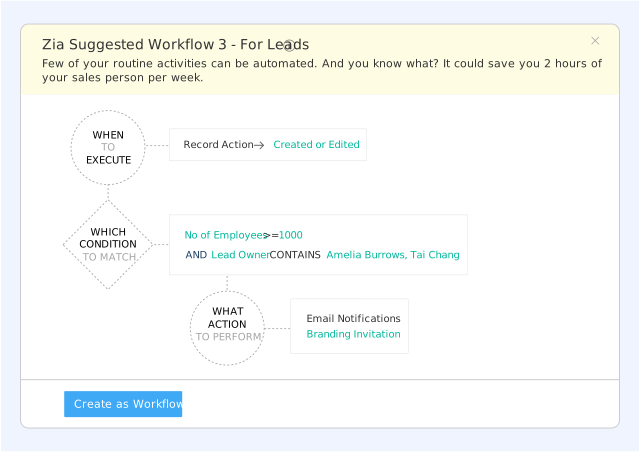
Zia, Zoho’s AI assistant, supports workflows without taking the decisions away from your team. According to Zoho’s help page on workflow suggestions, Zia can suggest a workflow when it notices you repeating the same action, and you review the suggestion and convert it into a rule if it makes sense. Zia’s Ask feature can also draft a workflow from a plain-language prompt.
In Enterprise edition there is also an option to send workflow emails at the time Zia suggests is best. The principle stays the same: Zia sorts and suggests, and your team reviews and sells. Used that way, AI saves the setup effort without pushing unreviewed rules into your pipeline.
For teams still running leads from spreadsheets, automation is the main reason to move off them; see why sales teams outgrow spreadsheets. And once the rules are running, the advanced analytics guide shows how to measure what they change.
CRM Automation FAQs
What is CRM automation? CRM automation uses rules inside your CRM to perform repetitive tasks automatically, such as assigning follow-up tasks, sending alerts, updating fields and creating records. In Zoho CRM this is mainly done with workflow rules.
What is the difference between a workflow rule and a Blueprint in Zoho CRM? Workflow rules run in the background when something happens to a record. Blueprints guide reps through a defined process stage by stage. Many teams use both.
Which CRM automation should I build first? Start with the one where delay costs the most, which for most teams is the speed-to-lead task on new leads. Add the stalled-deal nudge next.
Can Zoho CRM automatically create a deal from a lead? Yes. Automatic record creation and lead conversion are available as workflow actions, with record creation requiring Professional edition or above.
Does CRM automation replace sales reps? No. It removes reminders and data entry so reps spend more time with customers. People still make the judgement calls.
Put Your First CRM Automation Rules to Work
If your reps still rely on memory to follow up, start with one rule this week, then add the rest as you see results. For a broader view of the full rollout, see our complete Zoho CRM implementation guide.
Book a free consultation with PyramidBITS and we’ll review which of these seven workflows fit your current sales process.